
Multi-offer
A multi-offer discount holds several offers in one discount: product offers, order offers and shipping offers together, each with its own value, its own items, its own requirements and its own markets — plus one rule for what happens when two of them land on the same item.
-
Open Discounts, click Create discount, and choose Multi-offer Discount.
It sits in the Advanced section of the create menu, badged New, with the example “Multiple offers and conditions in a single discount”.
-
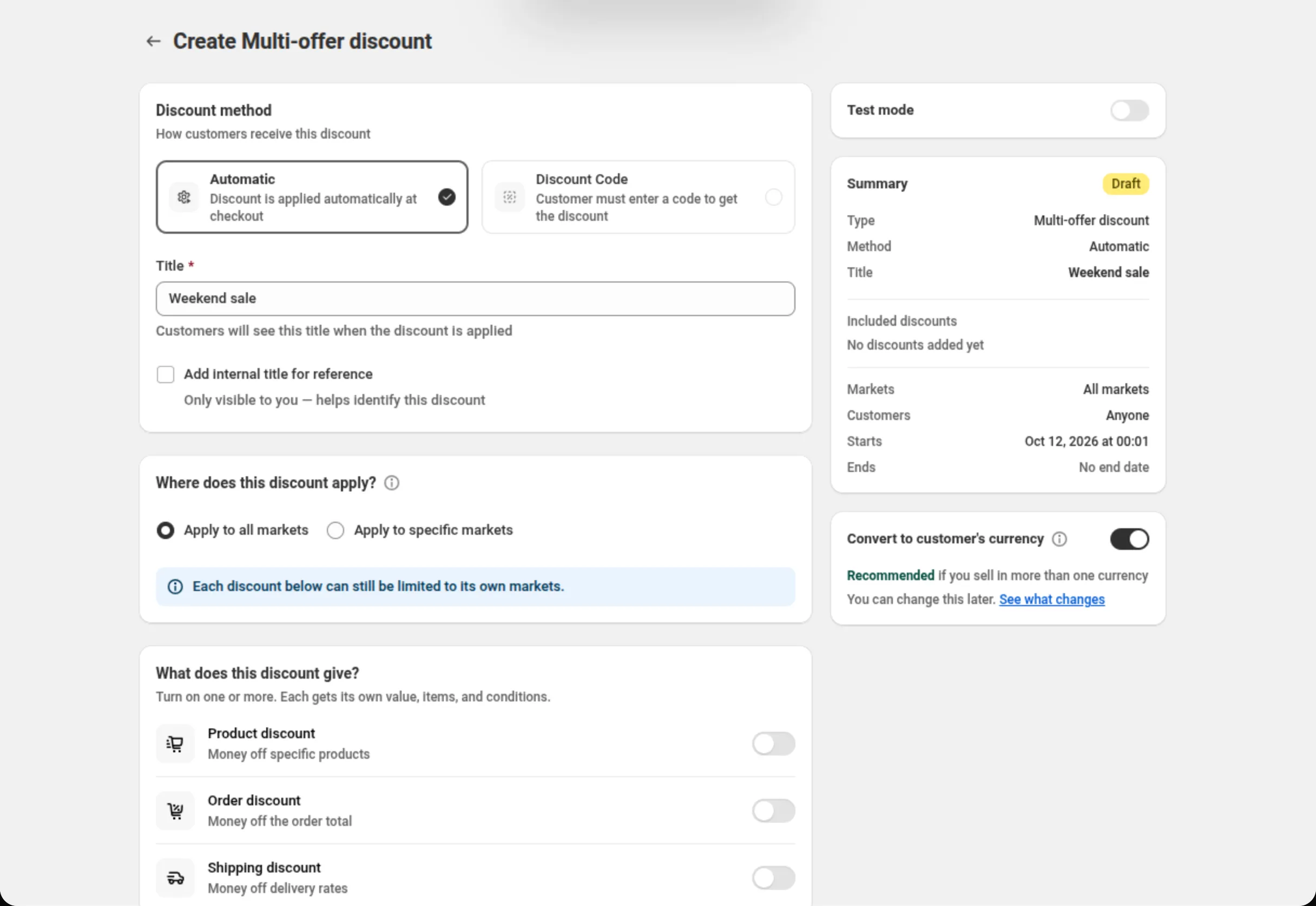
Choose the discount method and name the discount.
Pick Automatic or Discount Code, then fill in Title (automatic) or Discount Code (code).
-
Set where the whole discount applies.
Where does this discount apply? is the outer boundary: Apply to all markets, or Apply to specific markets and pick up to 20. Every offer below stays inside this selection.
-
Turn on the kinds of discount it gives.
In What does this discount give?, switch on Product discount, Order discount, Shipping discount, or any combination. Each one you turn on opens its own section with a first card ready to fill in, and you can add more with Add another product discount (and the equivalents).
-
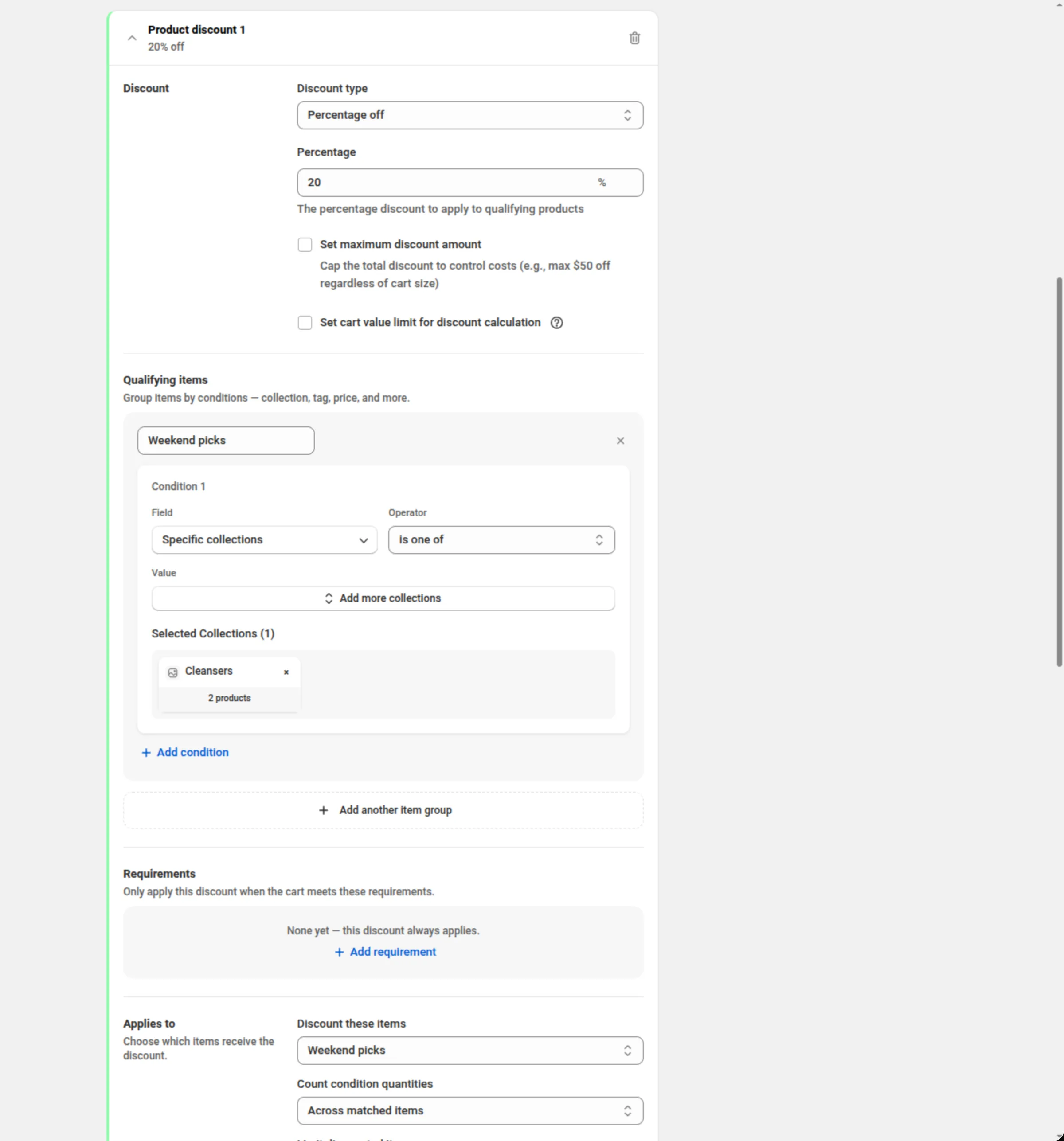
Fill in each discount card.
A card carries Discount (type and value), Qualifying items, Requirements, Applies to and Available in. Order cards also carry Minimum after product discounts and Item exclusions. Click the card header to collapse it once it is done.
When an order card is set to Percentage off, the Calculate after product discounts card appears in the right-hand column, under Convert to customer’s currency. It is on for a new discount.
-
Set who can use it, what happens when discounts overlap, and the dates, then save.
Who can use this discount limits it to certain customers. Discount rules & limits picks the overlap rule and an optional overall item limit. Then set combinations, purchase type and dates, and save from the bar at the top of the page.
Settings
Section titled “Settings”Discount method
Section titled “Discount method”Automatic needs no code — Shopify applies the discount as soon as a cart matches. Discount Code means the shopper has to enter the code you set. Choose the method when you create the discount: the chooser is disabled once the discount exists.
Title / Discount Code
Section titled “Title / Discount Code”On an automatic discount, Title is the name shoppers see when the discount is applied. On a code discount the field becomes Discount Code.
Add internal title for reference
Section titled “Add internal title for reference”Adds a second name only you see, to tell similar discounts apart.
Where does this discount apply?
Section titled “Where does this discount apply?”The markets the whole discount runs in — Apply to all markets, or Apply to specific markets with up to 20 picked. It is the boundary for every offer below: an offer can narrow it, never widen it. Removing a market here also removes it from the offers that used it.
What does this discount give?
Section titled “What does this discount give?”Three switches — Product discount (money off specific products), Order discount (money off the order total) and Shipping discount (money off delivery rates). Turn on as many as you need; at least one offer is required to save. Turning a switch off hides that section and keeps what you had, so switching it back on restores it.
Discount (type and value)
Section titled “Discount (type and value)”Each card starts with its own Discount type and value:
- Product discount — Percentage off, Fixed amount off, Fixed amount off per item, or Percentage off compare-at price.
- Order discount — Percentage off or Fixed amount off.
- Shipping discount — Percentage off, Fixed amount off, Free shipping or Flat rate.
A percentage must be greater than 0 and no more than 100. Percentage off on product and order offers can also tick Set maximum discount amount and Set cart value limit for discount calculation.
A ticked box needs an amount greater than 0. If it is empty, 0 or negative, the save is blocked: the field shows “Please enter a maximum discount amount” or “Please enter a maximum cart value” (or “Please enter a valid amount greater than 0”), and the banner at the top names the card, for example “Enter a maximum discount amount for Order discount 1.”
Percentage off compare-at price charges the Compare-at price minus your percentage. Items with no Compare-at price, or with one lower than the current price, are skipped, and an item whose current price is already lower keeps it. It takes no cap and no cart value limit.
Minimum after product discounts
Section titled “Minimum after product discounts”Order cards only. Require a minimum order amount after product discounts asks for a floor Shopify checks on the order total that remains after product discounts. A Cart subtotal requirement is different: it checks the amount before discounts. The amount must be greater than 0.
The minimum is not available in three cases:
- The same discount has a product discount. The checkbox is replaced by “Not available while this discount has a product discount.” and a Learn more link to this section. If you need both, put the product discount in a separate discount and turn the minimum on in this one. A discount saved earlier with both keeps the checkbox, shows “Can’t be used while this discount has a product discount. Turn it off, or move the product discount to a separate discount.”, and can’t be saved until you do one of the two.
- When discounts overlap is set to Apply all matching discounts. The card shows “Not available when order discounts apply together (“all”). Choose “first” or “maximum” to use this.”
- The order card has Set maximum discount amount or Set cart value limit for discount calculation ticked. The error reads “Can’t be combined with a maximum discount cap or cart value limit. Turn one of them off to save.”
With the minimum on, the order percentage is calculated after product discounts whatever the Calculate after product discounts switch says.
Item exclusions
Section titled “Item exclusions”Order cards only. Don’t apply this discount to specific items keeps chosen products and collections out of the calculation — they stay in the cart at full price. Up to 20 products and 10 collections. The choice below it decides whether those items still count toward your requirements: Count excluded items toward requirements or Ignore excluded items everywhere. Item exclusions are not available while When discounts overlap is set to Apply all matching discounts.
Qualifying items
Section titled “Qualifying items”Named groups of cart items, each a list of conditions with its own Match all / any of these conditions. Groups are independent — they do not combine with each other; they are the selections the rest of the card refers to by name. With no groups at all, every item qualifies.
Product and order cards offer the item, cart and customer conditions, plus Compare-at price. Shipping cards offer cart and customer conditions, Specific collections, Line quantity, Line subtotal, and the destination and method conditions (Country code, Province / State code, Shipping city, Postal code, Shipping type, Shipping method).
Requirements
Section titled “Requirements”Gates on the cart that must be true before this offer applies. Each requirement measures one group — All items or one of your named groups — with Subtotal, Quantity (sum), Number of line items, Unique products, Unique variants or Compare-at subtotal, then an operator and a value. With several requirements you get a Match all / any of these requirements choice. With none, the offer always applies.
Compare-at subtotal adds up Compare-at price × quantity, counting items without a Compare-at price at their current price. It is not offered on shipping cards.
Applies to
Section titled “Applies to”Which items actually receive this offer. An order offer applies to the whole order. A product offer picks a group in Discount these items. A shipping offer picks Rate to discount — All shipping rates, Rate by name, Rate by price or No rate (disable), with a match operator and value for the middle two.
Product offers also get:
- Count condition quantities — Across matched items (the default), Per product or Per variant. The last two need Percentage off or Percentage off compare-at price, and cannot be used with Set maximum discount amount, Set cart value limit for discount calculation, or a Unique products or Unique variants requirement. While either box is ticked, the select is hidden. If counting is already set to Per product or Per variant when you tick a box, the select stays visible with the error “Per-product or per-variant counting can’t be used with a maximum discount or a cart value limit. Untick them, or set counting back to Across matched items”, and the save is blocked.
- Limit discounted items — No limit, Highest-value items first, Lowest-value items first or First items in cart, with a quantity of 1 or more.
Available in
Section titled “Available in”The markets for this one offer, inside the discount’s own selection: All markets (or All selected markets), or a narrower list of up to 20. If a market this offer relies on is removed at the top of the page, the card says so, and an offer left with no usable market blocks the save.
Who can use this discount
Section titled “Who can use this discount”Optional customer conditions for the whole discount — Customer tags, Customer logged in, Customer is B2B and Customer orders count, with a Match all / any of these conditions choice. Leave it empty and anyone can use the discount.
The same card has the Limit to certain customers switch. On, Match by chooses Customer segments (up to 5 on an automatic discount, up to 20 on a code) or Specific customers (up to 100). Shopify checks the shopper before the discount runs; your conditions still apply on top. See Customer eligibility.
When discounts overlap
Section titled “When discounts overlap”What happens when two offers land on the same item:
- Apply the first matching discount — use the one listed first.
- Apply the discount that saves the most — pick the larger saving on each item.
- Apply all matching discounts — stack them. Its help text reads: “Stack matching discounts on the item. Two product discounts on the same item only combine on Shopify Plus; otherwise Shopify applies the best one.”
Overall item limit
Section titled “Overall item limit”Caps how many items (by quantity) get discounted across the whole cart, and overrides the per-offer limits. No overall limit, or Highest-value items first, Lowest-value items first or First items in cart with a quantity of 1 or more.
Discount can be combined with:
Section titled “Discount can be combined with:”Ticks for Product discounts, Order discounts and Shipping discounts — that is, other discounts outside this one. Leave them off and this discount runs alone.
Tags, in the same card, label the discount — up to 20. They are saved on the discount in Shopify. On Shopify Plus, ticking Product discounts also shows Stack with product discounts tagged. See Combinations.
Maximum discount usage
Section titled “Maximum discount usage”Only shown for a discount code. Limit number of times this discount can be used in total adds a Maximum discount uses field (a whole number greater than 0), and Limit to one use per customer caps it per shopper.
Restrict to a delivery method
Section titled “Restrict to a delivery method”Only shown for a discount code. Restrict this discount to specific delivery methods lets you keep the code for Pickup, Shipping, Local delivery or Pickup point only. If the customer picks a delivery method the code does not allow, Shopify blocks it and shows the text you put in Message when checkout is blocked (up to 140 characters). The app’s own checkout validation function enforces this, not the discount itself. The card previews that message as the customer will see it.
Purchase type
Section titled “Purchase type”One-time purchases, Subscription products, or both — at least one is required. Ticking subscriptions adds a choice of First payment only, Limited number of payments (up to 100) or All recurring payments.
Active Dates
Section titled “Active Dates”Start Date and Start Time say when the discount begins, and Set End Date adds an end. All times are in your store’s timezone, which the card names on screen.
Convert to customer’s currency
Section titled “Convert to customer’s currency”Sits under the Summary, and is on by default on a multi-offer discount. On, every fixed amount, cap and money condition on every offer is changed into the currency the customer pays in, so “10 off” is worth 10 to them. Off, your numbers are used as typed in every currency. Percentages and item counts never change either way, and on a single-currency store the setting makes no difference. You can change it later, and the card explains what changes before the flip takes effect.
Calculate after product discounts
Section titled “Calculate after product discounts”A switch in the right-hand column, under Convert to customer’s currency. It shows only while an order card is set to Percentage off, and it applies to every order percentage in the discount. The card states the current setting:
- On: “The percentage comes off the cart total after product discounts.” This is how Shopify’s own order discounts work.
- Off: “The percentage comes off the full cart total, even when a product discount also applies.”
A new multi-offer discount starts with the switch on. A discount created before 11 October 2026 opens with it off, and nothing changes until you turn it on. A duplicate copies the switch from the discount you duplicate.
On an existing discount, flipping the switch opens a confirmation first (“This is a live discount. The change takes effect for customers as soon as you save.”). Cancel leaves it as it was.
The switch can’t be on together with:
-
Set maximum discount amount or Set cart value limit for discount calculation on an order card with Percentage off. The error, shown on the switch and on the ticked box, reads:
“Calculate after product discounts” can’t be on while Order discount 1 uses “Set maximum discount amount” or “Set cart value limit for discount calculation”. Shopify can’t cap a percentage it calculates. Turn off the switch, or untick those boxes, to save.
-
Apply all matching discounts when the discount has more than one order card. The error, shown on the switch and under When discounts overlap, reads:
“Calculate after product discounts” can’t be on when “Apply all matching discounts” is chosen and this discount has more than one order discount. With that option the app adds the order discounts together on the full cart total. Turn off the switch, choose another option under “When discounts overlap”, or keep one order discount.
Fixed amount off on an order card is not affected by the switch.
How is the order percentage calculated when a product discount also applies?
Section titled “How is the order percentage calculated when a product discount also applies?”When a cart gets a product discount and your order percentage, the result depends on the Calculate after product discounts switch. A product discount here can be a product card in this same discount, or another discount that is allowed to combine with it.
Switch on: the percentage comes off what the cart costs once product discounts are taken off.
Switch off: the percentage is calculated on the full cart total, before product discounts. On a cart that also gets a product discount, the customer saves more than the percentage you set.
Worked example. One discount: Product discount 1 is 20% off every item, Order discount 1 is 15% off. The cart totals 80.00, and the product card brings it down to 64.00.
Switch on: 15% of 64.00 = 9.60 off → customer pays 54.40Switch off: 15% of 80.00 = 12.00 off → customer pays 52.00Carts without a product discount get the same amount either way. The only difference is rounding: with the switch on Shopify rounds the amount, with it off the app does, so the two can differ by at most 1 cent.
What you see in the app:
- The Summary shows one line under each order percentage: “Calculated after product discounts” or “Calculated before product discounts”. With Minimum after product discounts on, that card always shows “Calculated after product discounts”.
- With the switch off, the minimum off, and a product discount able to apply to the same cart, a blue note under Percentage says, for 15%: “15% is calculated on the cart total before product discounts are applied.” Its tooltip ends with how to change that.
Test mode
Section titled “Test mode”A switch on its own card above the Summary. On, the discount applies only to a signed-in
customer whose account has the tag dos-test; everyone else shops as if it did not exist. On a new
discount the switch is saved with the discount. On a saved discount it takes effect at once, without
Save. See Test mode.
Examples
Section titled “Examples”20% off a collection and free shipping, in one automatic discount
Discount method: AutomaticTitle: Weekend saleWhere does this discount apply?: Apply to all marketsWhat does this discount give?: Product discount + Shipping discountProduct discount 1 → Discount type: Percentage off · Percentage: 20Product discount 1 → Qualifying items → Group 1: Specific collections · is one of · Weekend picksProduct discount 1 → Applies to → Discount these items: Group 1Shipping discount 1 → Discount type: Free shippingShipping discount 1 → Applies to → Rate to discount: All shipping ratesWhen discounts overlap: Apply the discount that saves the mostA code that gives 10% off the order and a flat delivery rate over a spend
Discount method: Discount CodeDiscount Code: WEEKEND10What does this discount give?: Order discount + Shipping discountOrder discount 1 → Discount type: Percentage off · Percentage: 10Order discount 1 → Set maximum discount amount: ticked · Maximum Discount Amount: 40Shipping discount 1 → Discount type: Flat rate · Flat Rate Amount: 5Shipping discount 1 → Requirements → All items · Subtotal · is greater than or equal to · 75Limit to one use per customer: tickedCalculate after product discounts: offThe switch has to be off here because the order percentage has a maximum discount amount.
20% off every item and 15% off the order, calculated after the product discount
Discount method: AutomaticTitle: Autumn home saleWhat does this discount give?: Product discount + Order discountProduct discount 1 → Discount type: Percentage off · Percentage: 20Order discount 1 → Discount type: Percentage off · Percentage: 15When discounts overlap: Apply the first matching discountCalculate after product discounts: onAn 80.00 cart gets 16.00 off from the product card, then 15% of 64.00 = 9.60 off the order. The customer pays 54.40.
Compare-at pricing on one collection, capped at 3 items
Discount method: AutomaticTitle: Compare-at pricing · OutletWhat does this discount give?: Product discountProduct discount 1 → Discount type: Percentage off compare-at price · Percentage: 30Product discount 1 → Qualifying items → Group 1: Specific collections · is one of · OutletProduct discount 1 → Applies to → Discount these items: Group 1Overall item limit: Highest-value items first · Quantity: 3Two product offers, best one wins
Discount method: AutomaticTitle: Mix and matchWhat does this discount give?: Product discountProduct discount 1 → Discount type: Percentage off · Percentage: 15Product discount 1 → Qualifying items → Group 1: Product tags · is one of · summerProduct discount 1 → Applies to → Discount these items: Group 1Product discount 2 → Discount type: Fixed amount off per item · Amount: 10Product discount 2 → Qualifying items → Group 1: Specific collections · is one of · DressesProduct discount 2 → Applies to → Discount these items: Group 1When discounts overlap: Apply the discount that saves the mostHow it shows to the shopper
Section titled “How it shows to the shopper”An automatic multi-offer discount needs nothing from the shopper: Shopify applies the matching offers in the cart and shows the Title you typed next to the saving. A code discount applies once the shopper enters the code you set.
Every offer inside the discount runs under that one name, so a title that describes the promotion (“Weekend sale”) reads better than one that describes a single number.
Limits and notes
Section titled “Limits and notes”- At least one offer. A multi-offer discount cannot be saved with every switch off.
- Percentages: greater than 0, at most 100, on every offer.
- Markets: up to 20 for the whole discount, and up to 20 for any one offer.
- Excluded items on an order offer: up to 20 products and up to 10 collections.
- Item limits: a quantity of 1 or more, per offer and for the overall limit.
- Delivery message: up to 140 characters.
- Subscriptions: up to 100 recurring payments when you choose a limited number.
- Cart attribute keys: product and order offers read one cart attribute key per discount; shipping offers can read two. A condition using another key is refused when you save, with the reason on that condition.
- Ticked boxes need an amount. Set maximum discount amount and Set cart value limit for discount calculation need an amount greater than 0 once ticked.
- Blocked pairs. Each is refused inline and again on the server:
- Calculate after product discounts with a maximum discount amount or a cart value limit on an order percentage, or with Apply all matching discounts and more than one order card.
- Minimum after product discounts with a product card in the same discount, with a maximum discount amount or a cart value limit, or with Apply all matching discounts.
- Item exclusions with Apply all matching discounts.
- Percentage off compare-at price with a maximum discount amount or a cart value limit.
- Per product or Per variant counting with a maximum discount amount, a cart value limit, or a unique-product or unique-variant requirement, and with any type other than a percentage.
- Customers: up to 5 customer segments on an automatic discount and up to 20 on a code, or up to 100 specific customers.
- Offers stay inside the discount’s markets. An offer can narrow the market selection, never widen it.
- Combinations are Shopify’s call. Discount can be combined with is about other discounts outside this one; Shopify decides what actually applies to a cart.
- The method is fixed after creation. Automatic and Discount Code cannot be swapped on an existing discount; duplicate it instead.
Is an order percentage calculated before or after product discounts? It depends on the Calculate after product discounts switch. On, the percentage comes off the cart total after product discounts, the same way Shopify’s own order discounts work. Off, it is calculated on the full cart total. New multi-offer discounts start with the switch on. Discounts created before 11 October 2026 open with it off.
Why is Minimum after product discounts not available? The minimum is not available while the same discount has a product discount. Put the product discount in a separate discount, then turn the minimum on. It is also not available while When discounts overlap is set to Apply all matching discounts.
Why can’t I use Per product counting with a maximum discount? Per product and Per variant counting can’t be used with Set maximum discount amount or Set cart value limit for discount calculation. Untick those boxes, or set Count condition quantities back to Across matched items.
What is the difference between Qualifying items and Applies to? Qualifying items are the named groups of cart items the offer knows about. Applies to says which group actually receives the discount — so you can require one group and discount another.
When do I use “Apply all matching discounts”? When two offers should stack on the same item. Its help text reads “Stack matching discounts on the item. Two product discounts on the same item only combine on Shopify Plus; otherwise Shopify applies the best one.” Use Apply the discount that saves the most for a predictable single winner.
Why can’t I add a maximum discount cap to a compare-at percentage? That type is worked out per line from the item’s own Compare-at price, so a cap or a cart value limit would never be honoured. The app refuses the pair rather than store a promise the discount cannot keep.
My offer says its markets were removed at the top of the page. What happened? An offer only runs inside the markets the whole discount runs in. Removing a market at the top removes it from the offers that used it, and an offer left with no usable market is flagged and blocks the save until you pick different markets or add the market back.
Related
Section titled “Related”- Product discount — one product offer on its own.
- Order discount — one order offer on its own.
- Shipping discount — one shipping offer on its own.
- Where discounts show — automatic discounts versus discount codes.